

Backlink tracking is an essential but time-consuming task for SEO teams. Manually verifying whether a link is live or lost, and updating its Domain Authority (DA), can slow down your workflow and introduce human errors. Fortunately, automation can save hours of work and improve accuracy. In this guide, we’ll show you how to automate backlink tracking using Google Apps Script and the Moz API, creating a system that fetches DA automatically and tracks link status in real-time.
By the end of this tutorial, you’ll be able to:
- Automatically check live vs lost backlinks
- Fetch Domain Authority (DA) directly inside Google Sheets
- Build a scalable backlink monitoring system for your SEO team
Why Automate Backlink Tracking?
If your SEO team is building backlinks regularly, you might have faced these common pain points:
- Constantly switching between tools to check DA
- Manually verifying whether links are live or removed
- Updating backlink status across spreadsheets
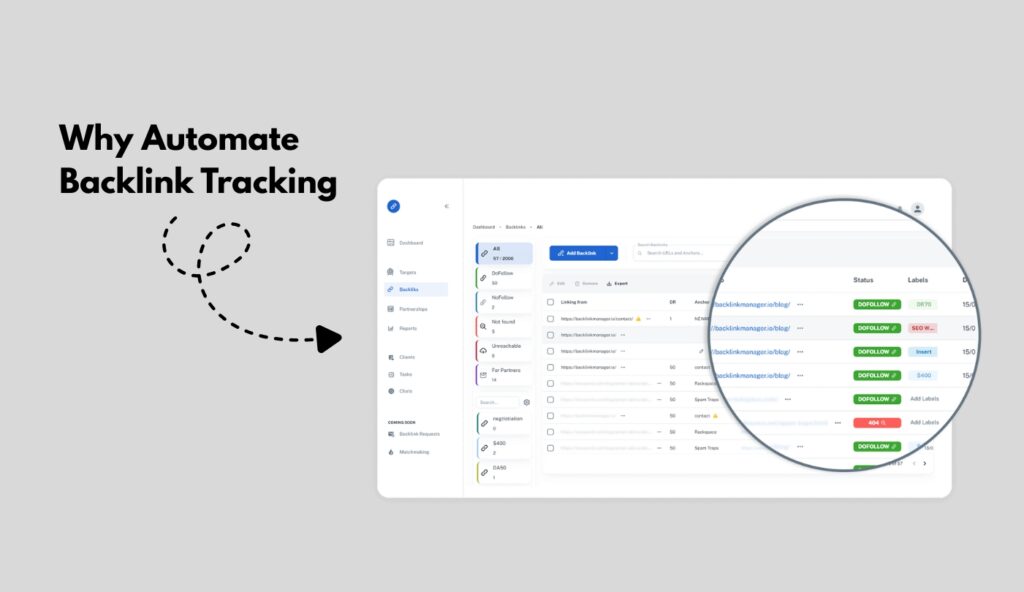
Manual tracking not only wastes time but also increases the risk of errors. With automation, you can:
- Automatically check backlink status
- Fetch DA directly from the Moz API
- Update your Google Sheet in real-time without manual input
This method is especially beneficial for small SEO teams handling multiple clients or campaigns, as it ensures accuracy and efficiency.
Step 1: Create a Backlink Tracking Google Sheet
Start by creating a Google Sheet to serve as your backlink tracker. You don’t need a pre-made template, you can customize it to fit your workflow.
Recommended Columns
Your sheet should include:
- Keyword
- Target URL
- Backlink URL
- DA (Domain Authority)
- Link Status (Live / Lost / Removed)
Tips for Usability
- Add dropdown values for link status: Live, Lost, Removed
- Apply conditional formatting:
- Green for Live
- Red for Lost or Removed
This setup makes it easy to visually track backlink health at a glance, and ensures your team can spot issues immediately.
Step 2: Get Access to the Moz API
To fetch Domain Authority automatically, you’ll need the Moz API.
How to Get Your Moz API Token
- Go to the Moz API Dashboard
- Create a free account (free plan is enough for testing)
- Generate your API token
Note: The free Moz API allows around 50 requests, perfect for small projects or demonstrations. The API token will allow your Google Sheet to pull DA values automatically for any backlink added to your tracker.
Step 3: Connect Google Sheets to Moz API Using Google Apps Script
const MOZ_TOKEN = 'YOUR MOZ API TOKEN';

function updateBacklinkMetrics() {
  const sheet = SpreadsheetApp.getActiveSheet();
  const lastRow = sheet.getLastRow();

  for (let row = 2; row <= lastRow; row++) {

    const backlinkCell = sheet.getRange(row, 2).getValue();
    const url = extractUrl(backlinkCell);

    // ❌ No URL found
    if (!url) {
      sheet.getRange(row, 5).setValue('Lost / Remove');
      continue;
    }

    // 🔎 Check URL Live Status
    const isLive = checkUrlLive(url);
    sheet.getRange(row, 5).setValue(isLive ? 'Live' : 'Lost / Remove');

    if (!isLive) continue;

    // 📊 Get DA from MOZ
    const domain = getDomain(url);
    const da = getMozDA(domain);

    if (da !== null) {
      sheet.getRange(row, 3).setValue(da);
    }
  }
}


function extractUrl(text) {
  if (!text) return null;
  const match = text.toString().match(/https?:\/\/[^\s]+/);
  return match ? match[0] : null;
}

function checkUrlLive(url) {
  try {
    const response = UrlFetchApp.fetch(url, {
      muteHttpExceptions: true,
      followRedirects: true,
      method: 'get'
    });
    return response.getResponseCode() < 400;
  } catch (e) {
    return false;
  }
}

function getDomain(url) {
  return url.replace(/^https?:\/\//, '').split('/')[0];
}

function getMozDA(domain) {
  const apiUrl = 'https://lsapi.seomoz.com/v2/url_metrics';

  const payload = {
    targets: [`https://${domain}`]
  };

  const options = {
    method: 'post',
    contentType: 'application/json',
    payload: JSON.stringify(payload),
    headers: {
      Authorization: `Basic ${MOZ_TOKEN}`
    },
    muteHttpExceptions: true
  };

  try {
    const response = UrlFetchApp.fetch(apiUrl, options);
    const data = JSON.parse(response.getContentText());

    return data.results?.[0]?.domain_authority ?? null;
  } catch (e) {
    return null;
  }
}
Now it’s time to connect your Google Sheet to Moz using Google Apps Script.
- Open your Google Sheet
- Click Extensions → Apps Script
- Paste the prepared script that integrates the Moz API and tracks link status
The script consists of two main functions:
1. Backlink Metrics Function
- Fetches DA from Moz API automatically
- Updates the DA column in your Google Sheet
2. URL Validation Function
- Checks whether a backlink URL is live or lost
- Updates the Link Status column automatically
Once pasted, save the script, run it for the first time, and grant permissions to allow Google Apps Script to access external APIs.
Step 4: Automating Domain Authority Updates
One of the biggest challenges in backlink tracking is forgetting to update DA for newly added backlinks. With this automation:
- As soon as a new backlink is added to your sheet, the script fetches DA from Moz automatically
- You no longer need manual entry
- The sheet always stays up-to-date with accurate SEO metrics
This is a huge time saver and ensures that your SEO reporting is accurate.
Step 5: Running the Automation
After setting up the script:
- Live backlinks are automatically marked as Live
- Lost or removed backlinks are flagged as Lost / Removed
- DA values are fetched and updated in real-time
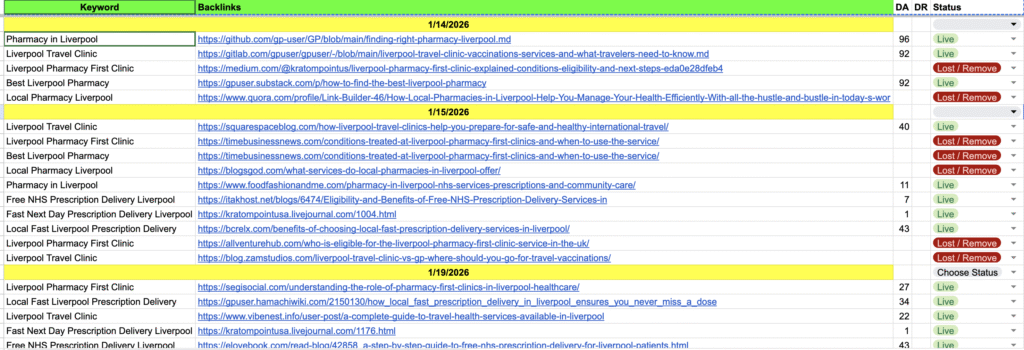
Example Test
Suppose you add a backlink from attendees.com:
- The script checks whether the URL is live
- Retrieves its DA (e.g., DA 55)
- Updates the Google Sheet automatically
This workflow gives your team instant insights into backlink health without switching between tools.
Benefits of Automated Backlink Tracking
Automating your backlink tracking system has multiple benefits for SEO teams:
- Save Hours of Manual Work – No more switching between Moz and spreadsheets
- Improved Reporting Accuracy – Automatic updates reduce human errors
- Real-Time Backlink Monitoring – See live or lost links instantly
- Scalable Across Multiple Projects – Handle multiple campaigns without extra effort
This system is perfect for small SEO teams managing multiple clients or projects, giving them the control and visibility they need.
SEO Advantages of Automating Backlink Tracking
By combining Google Sheets and Moz API:
- You streamline your SEO workflow
- Enable automated link audits
- Ensure your team can focus on link building and strategy instead of manual tracking
Pro Tip: Add conditional formatting to highlight low DA backlinks automatically. This helps prioritize link building strategies and outreach.
Automate Your Backlink Tracking
Automating backlink tracking using Google Apps Script and Moz API is a simple yet powerful way to improve your SEO workflow.
- Automatically check live vs lost backlinks
- Fetch DA without manual entry
- Keep your reporting accurate and real-time
With this setup, your SEO team can save time, reduce errors, and focus on building high-quality backlinks instead of spending hours manually tracking them.
Looking to take your SEO to the next level? Get expert backlink tracking and SEO services from our team at Convert Generation and boost your website’s performance today!
Frequently Asked Questions
How can I automatically track backlinks in Google Sheets?
You can automate backlink tracking by using Google Apps Script to connect your Google Sheet with the Moz API. This setup automatically updates backlink status and Domain Authority, saving hours of manual work for SEO teams.
Can I fetch Domain Authority automatically for new backlinks?
Yes! The script fetches Domain Authority (DA) for every new backlink added to your sheet. This ensures your Google Sheet is always up-to-date, so you never have to enter DA manually again.
What is the best way to monitor lost or removed backlinks?
The automation checks each backlink URL to see if it is live or lost. Links that are removed or broken are flagged instantly, helping you maintain an accurate backlink profile without manual checks.
Do I need coding skills to automate backlink tracking?
No, you don’t need advanced coding skills. Simply paste the prepared Google Apps Script into your sheet, grant permissions, and it will automatically track backlinks and fetch DA for you.
How does Moz API help in backlink tracking automation?
The Moz API provides real-time Domain Authority and other SEO metrics for your backlinks. Integrating it with Google Sheets allows seamless automation, giving your SEO team instant insights into link quality.